| |
|

|
DISCLAIMER |
|
|
This
article is intended for IT Professionals and
systems administrators with legitimate corporate
licenses for Windows XP Professional. It is not
intended for home users, hackers, or computer
thieves attempting to crack the product ID on a
pirated version of the Operating System. Please do
not attempt any of these procedures if you are
unfamiliar with modifying the Windows XP
registry, and please use this information
responsibly. LabMice.net is not responsible for
the use or misuse of this material, including loss
of data, damage to hardware, or personal
injury. INFORMATION PROVIDED IN THIS DOCUMENT
IS PROVIDED 'AS IS' WITHOUT WARRANTY OF ANY KIND,
EITHER EXPRESS OR IMPLIED, INCLUDING BUT NOT
LIMITED TO THE IMPLIED WARRANTIES OF
MERCHANTABILITY, FITNESS FOR A PARTICULAR PURPOSE
AND FREEDOM FROM INFRINGEMENT. The user assumes
the entire risk as to the accuracy and the use of
this
document. | |
Checking the Product ID
During the installation of Windows XP Professional,
you are prompted to enter a 25 digit Windows XP Product Key,
which Windows XP promptly converts it into the system's
product ID. Because of security concerns about piracy,
Microsoft does not provide a tool that allows you to view the
Product Key (or CD Key) that was used to install the operating
system. However, Windows XP Service Pack 1 ships with a list
of the two product IDs that are created by the pirated product
volume license product keys. (The Product ID can be found by
right clicking My Computer and choosing
Properties) To determine eligibility for the update,
Service Pack 1 compares the Windows XP product ID on the
system to this list. The comparison and the list reside
locally on the users PC and no information is sent to
Microsoft as part of this process. Service Pack 1 for Windows
XP will fail to install on installations of Windows with one
of the following product IDs: XXXXX-640-0000356-23XXX and XXXXX-640-2001765-23XXX
The following message will be displayed if
installation fails for this reason:
| Service Pack
1 Setup Error The product key used to install Windows is
invalid. Please contact your system administrator or
retailer immediately to obtain a valid product key. You
may also contact Microsoft Corporation’s Anti-Piracy
Team by emailing piracy@microsoft.com if you think you
have purchased pirated Microsoft software. Please be
assured that any personal information you send to the
Microsoft Anti-Piracy team will be kept in strict
confidence. |
How to
change your Product ID in Windows XP
If the product ID matches the invalid
keys above, you may need to change the key (re-enter a valid
key) in order to install Windows XP service pack 1, and to
make sure your environment is legal. You could completely
re-install Windows XP Professional or you can try the method
below. (Please backup your system before attempting this.)
This workaround is only for the corporate editions of
Windows XP Professional using a compromised or illegitimate
key. Windows XP Home Edition and retail versions of XP
Professional are not affected by Service Pack 1. Although this
procedure may work with other versions of XP, we have only
tested it on the corporate edition (volume license version) of
Windows XP Professional.
|
|
>>>>>>
WARNING
<<<<<<
This article contains information
about modifying the registry. Before you modify
the registry, make sure to back it up and make
sure that you understand how to restore the
registry if a problem
occurs. |
| |
Backup your
Registry/System State
- Backup your system state
by clicking Start > Run > and
typing ntbackup > Click the Advanced
Mode button in the Backup Utility Wizard.
>Click the Backup tab, then in Click to
select the check box for any drive, folder, or file
that you want to back up, select the System
State.
- As an alternative, you can
backup just the Registry by clicking Start >
Run > and type in Regedit From
within the Regedit screen, right click My
Computer, choose Export, name the file
whatever you choose, and click Save
To change the product
ID
- Log in as the local
Administrator
- Click Start >
Run > and type in
Regedit
- Browse to
HKEY_LOCAL_MACHINE\Software\Microsoft\Windows
NT\CurrentVersion\wpaevents
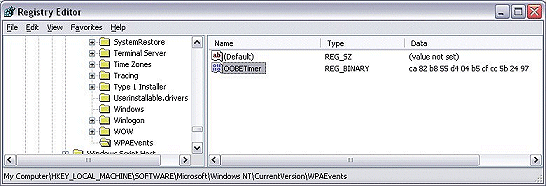
- In the right pane,
right-click OOBETimer, and then click
Modify
- Change at least one digit
of this value to deactivate Windows
- Click OK and
close
regedit
- Click Start >
Run and type in:
"%systemroot%\system32\oobe\msoobe.exe
/a"
- Click Yes, I want to telephone a customer
service representative to activate Windows,
and then click Next
- Click Change Product
Key (at the bottom)
- Enter your valid Corporate
Product Key
- Press Update and
close the window.
- If you are returned to the
previous window, click Remind me
later
- Restart your
computer
Verify the
change
- After the
workstation restarts, click Start >
Run
- Type in:
"%systemroot%\system32\oobe\msoobe.exe /a"
without the quotes.
- Make sure the dialog box
says 'your copy of windows is already
activated'
If you performed the above
steps incorrectly, or used an invalid key, your system
may not be able to boot. Use the F8 key to boot to the
last known good configuration and retry with a valid
key.
Troubleshooting
If
you tried the above steps and nothing happens:
- Make sure you are logged
in with the local administrator account, not just an
account with Administrator privileges.
- Try replacing the
%systemroot% variable with the actual drive letter
that your actual directory path, especially when dual
booting, or if the system path is on a drive other
than C:\
- On a normal Windows XP
installation, your systemroot should be
C:\windows\ so the command should be
C:\Windows\system32\oobe\msoobe.exe /a
- On systems upgraded from
Windows NT/2000, the systemroot directory may be
C:\Winnt\ so the command should be
C:\winnt\system32\oobe\msoobe.exe
/a
- Make sure you include a
space between .exe and /a in the
command:
- Correct
- C:\winnt\system32\oobe\msoobe.exe /a
- Incorrect -
C:\winnt\system32\oobe\msoobe.exe/a
- Product keys for XP Home
Edition and retail versions of XP Professional will
not activate a corporate or OEM version of XP
Professional. The algorithms are
different.
- If you do not have a valid
installation key for Windows XP, DO NOT e-mail
us asking for a key, keygen or crack.
|
|
|


